
Comparison: SecVSC vs. Windows Hello
3/25/2026, 9:50:40 AM
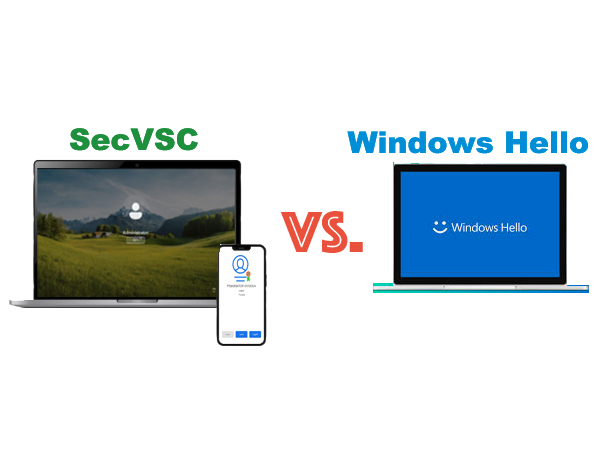
Many mid- to high-end laptops on the market today, particularly those from major brands, come with Windows Hello pre-installed. While Windows Hello offers users a highly convenient and secure experience, some users may be reluctant to log in using facial recognition or fingerprint scanning—especially when it involves sharing their biometric data.
SecVSC is designed to meet the needs of users who want both security and convenience but prefer not to use their biometric data for login authentication.
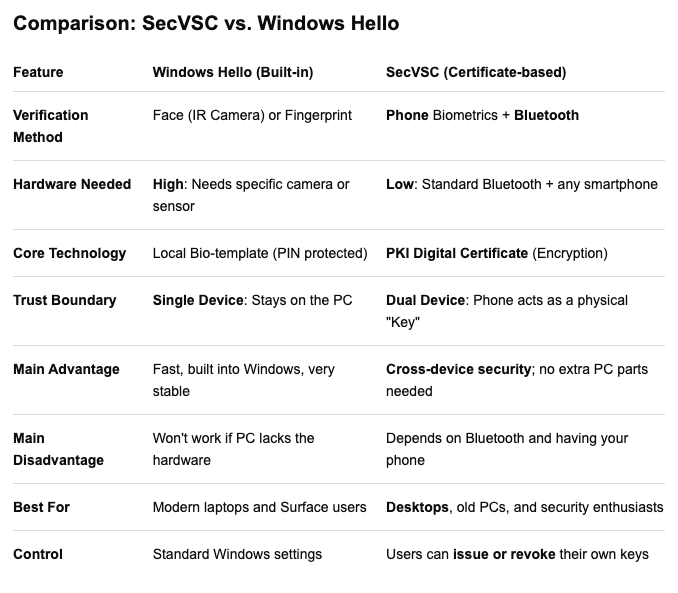
 Here is the clear, simple comparison table between Windows Hello and SecVSC:
Key Takeaways
Differences in the Underlying Technology:
Windows Hello focuses on “localized protection.” It converts your biometric data into a hash value and stores it in the computer's security chip (TPM).
SecVSC focuses on “physical isolation.” It deploys a mini CA (Certificate Authority) on the computer, while the certificate's private key is stored on your phone. SecVSC is designed to allow users to generate and manage root certificates independently, without relying on any hardware or system; computer login credentials are managed entirely by the user and do not depend on the operating system.
Security Logic: Windows Hello keeps your "lock" inside the computer. SecVSC moves the "key" to your phone. If someone steals your PC, they still don't have the key (your phone).
LSA Signature: Since SecVSC_Logon has the Microsoft LSA Signature, it is officially recognized by Windows as a trusted security component, just like high-end enterprise tools.
Convenience: Windows Hello is faster for daily use, but SecVSC is better if you want a "Smartphone-as-a-Key" experience on a computer that doesn't have a fingerprint reader or fancy camera.
Fault Tolerance and Recovery:
If Windows Hello fails, you can usually log in quickly using your PIN.
Since SecVSC is a third-party component, if the Bluetooth driver crashes or your phone runs out of battery, you’ll need to use the reserved alternate administrator account—that is, log in by manually entering your PIN using the keyboard.